Genspark AI Media Studio Tutorial: Characters, 3D Previz, Explainers
Genspark AI Media Studio tutorial with every prompt: consistent characters on one board, 3D-BOX previz to live action, a PDF explainer and a Story Bible.
Genspark AI Media Studio Tutorial: Characters, 3D Previz, Explainers
No film crew. Just a few photos and one PDF guide, and I made a store promo video and a training video!
On October 27, GensparkAffiliate link: Fieldnotes earns a commission if you purchase through this link. launched ‘AI Media Studio’ (Genspark Media Studio).
I jumped in as soon as I saw the news. So this is what it means to make images, video and 3D on one screen, one after another.
Today I picked 4 of the 10 things I tried in Genspark AI Media Studio and wrote them up click by click, so you can follow along.
We’ll go from AI images where the same person keeps showing up, to a 3D-BOX blocking video, a knowledge explainer video made from a guide, and a Story Bible.
The example brand, ‘Solbat Brew’, is a fictional cold brew shop in Seongsu-dong, Seoul!
A preview of what we’ll make in Genspark AI Media Studio today
Before we start, here’s what you get at the end: one image and three videos.
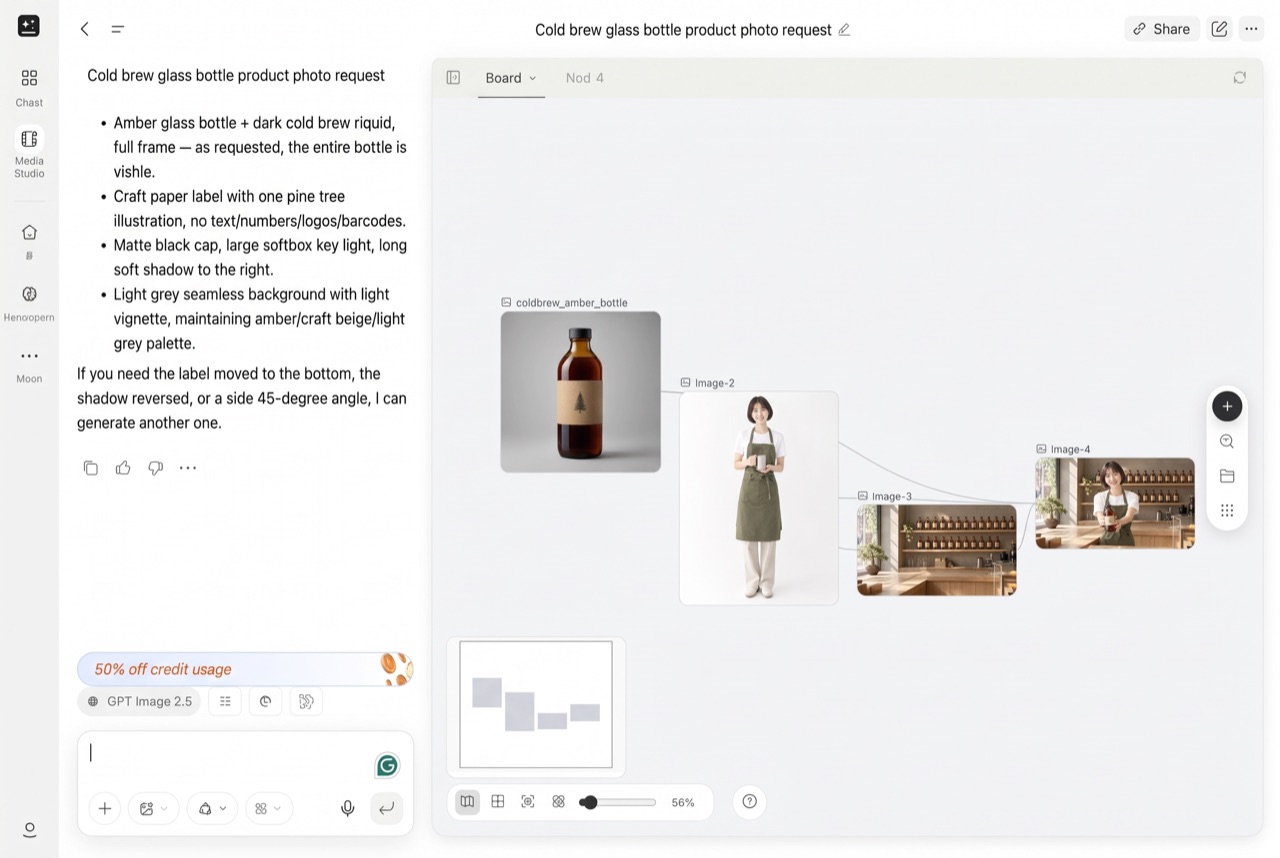
❶ Image board I made the bottle, the barista and the store separately, then combined them into one scene. Even the pine tree on the label stayed the same.
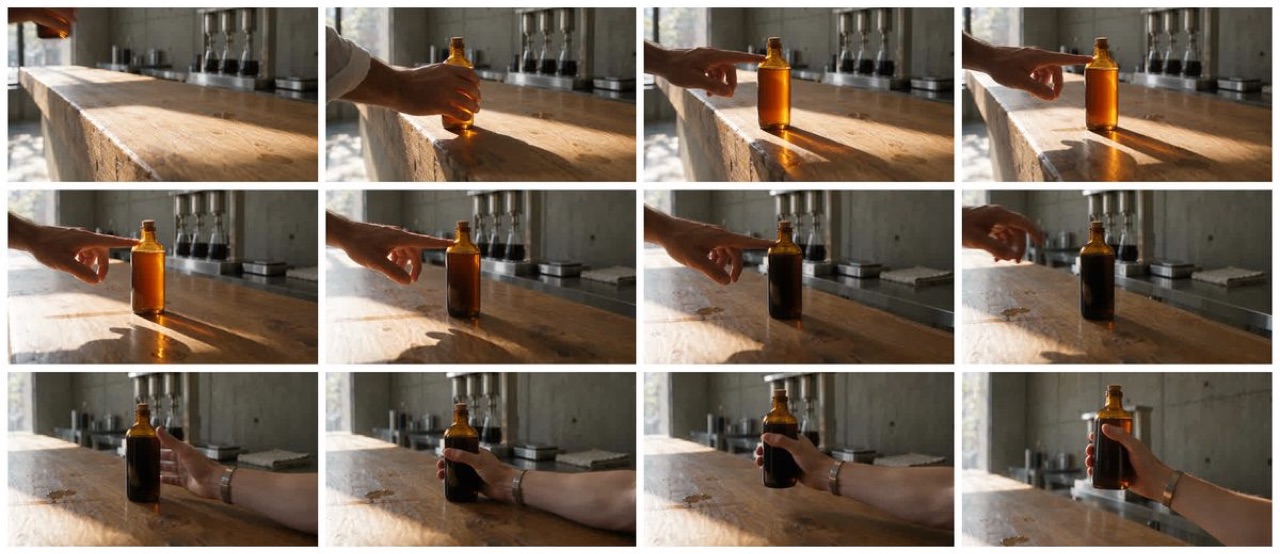
❷ 3D-BOX A 10-second live-action video shot exactly along the movement I blocked in 3D.
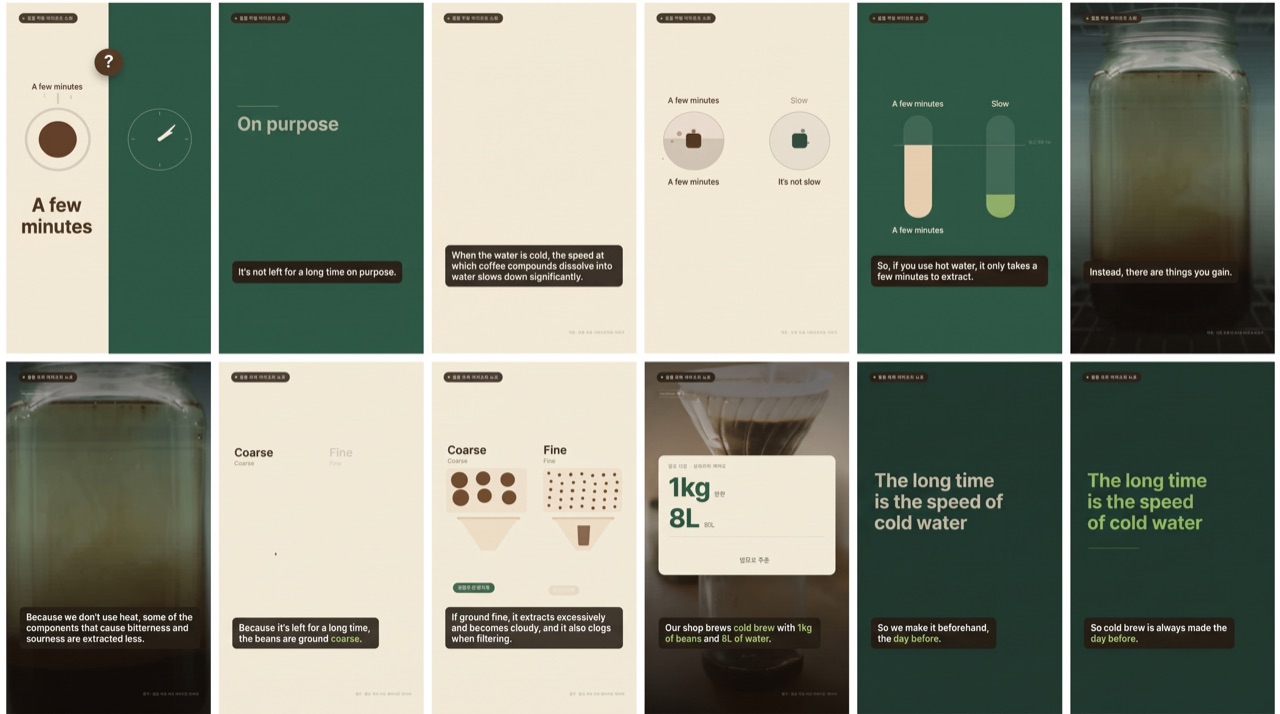
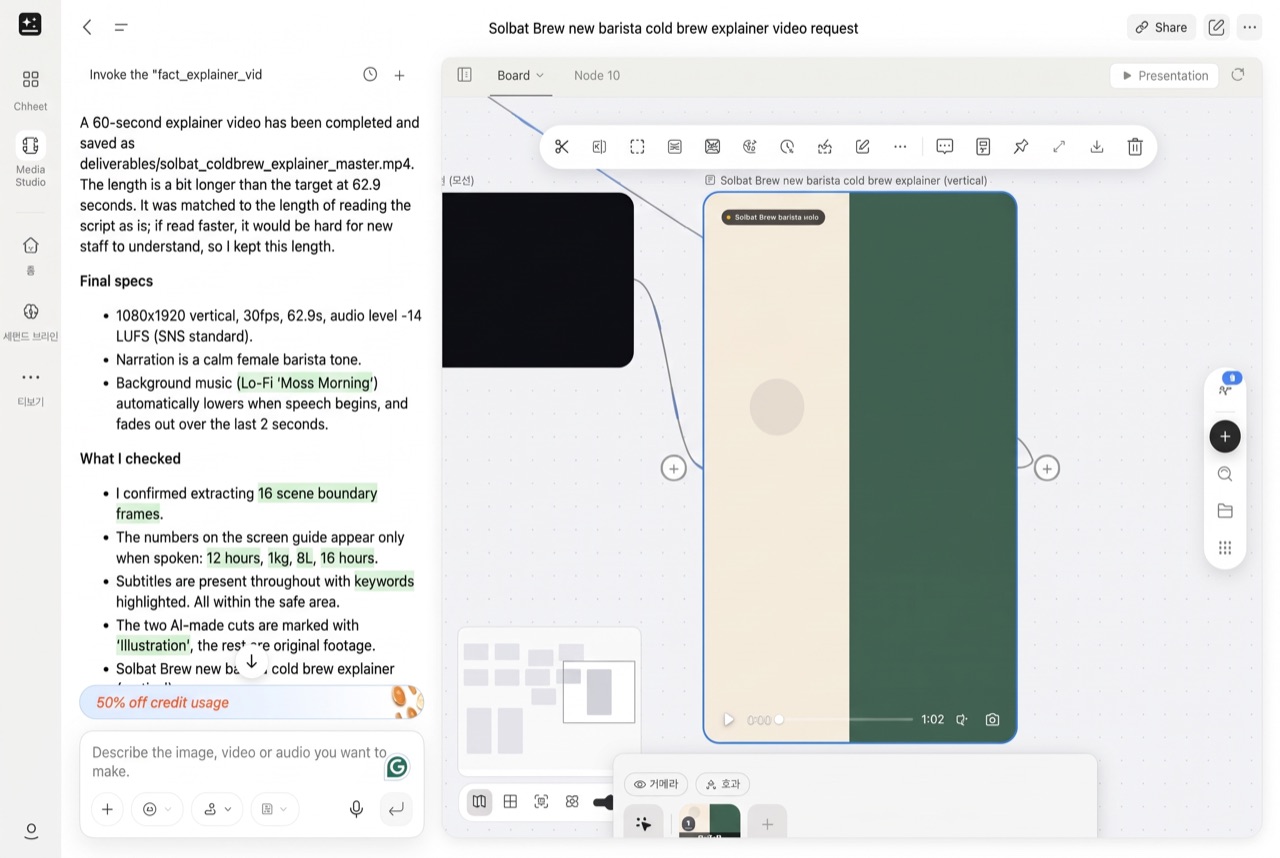
❸ Knowledge Explainer One PDF guide became a 60-second vertical training video. The agent added the captions and graphics, too.
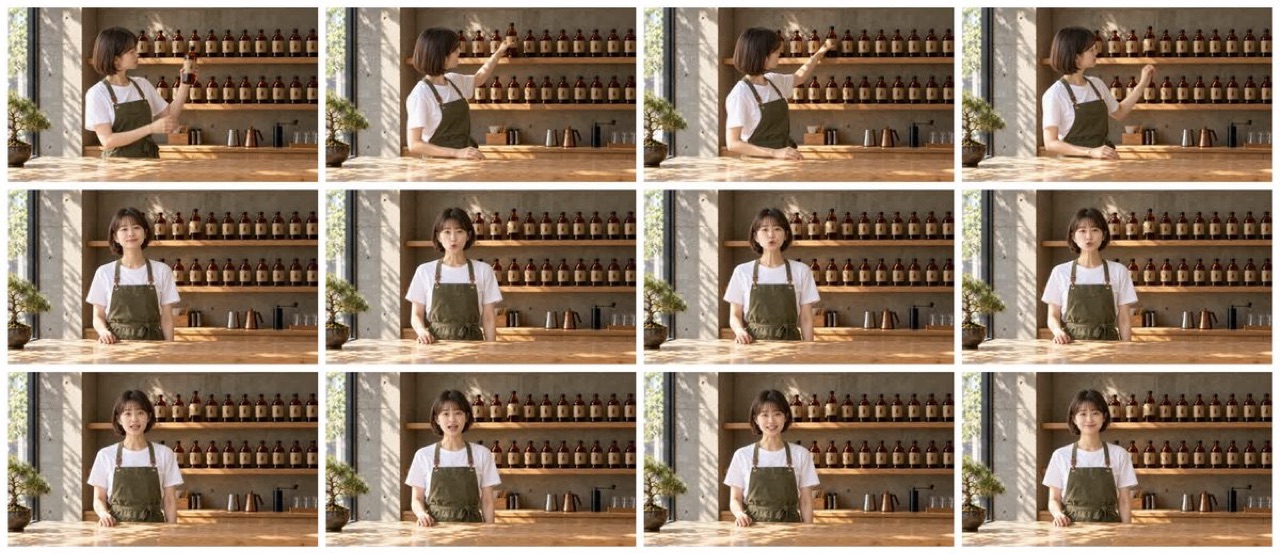
❹ Story Bible A 10-second video made after setting up the character and story in a bible once!
Let’s make these four one at a time.
Wait, what is Genspark AI Media Studio?
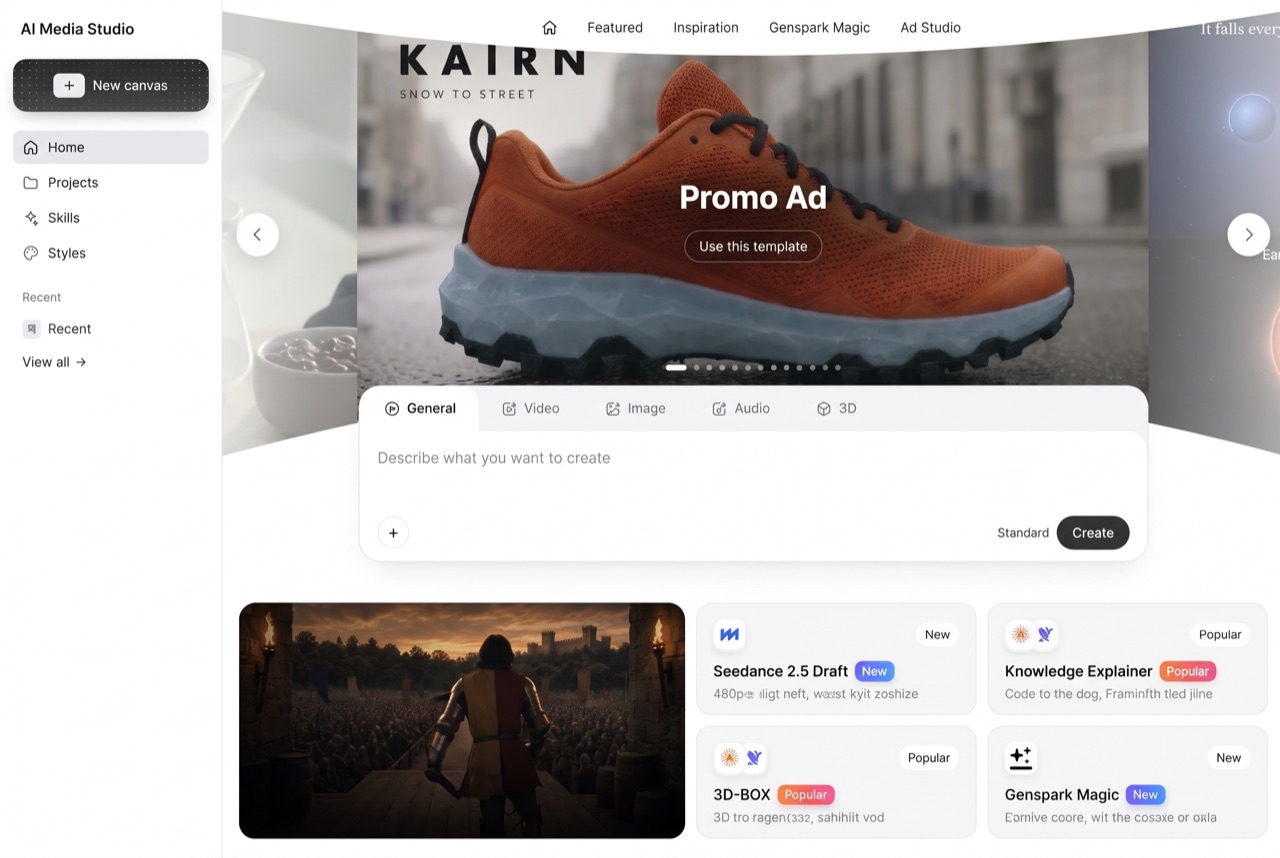
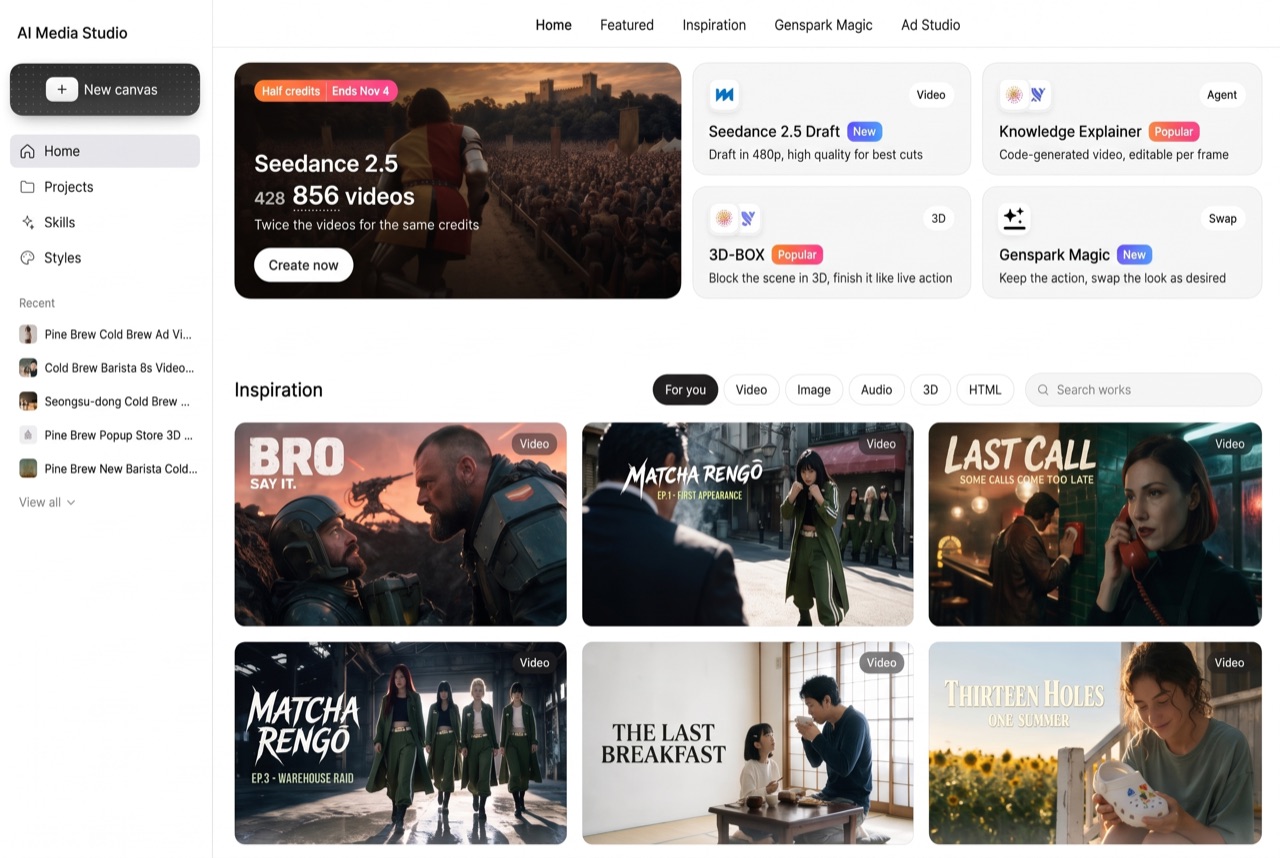
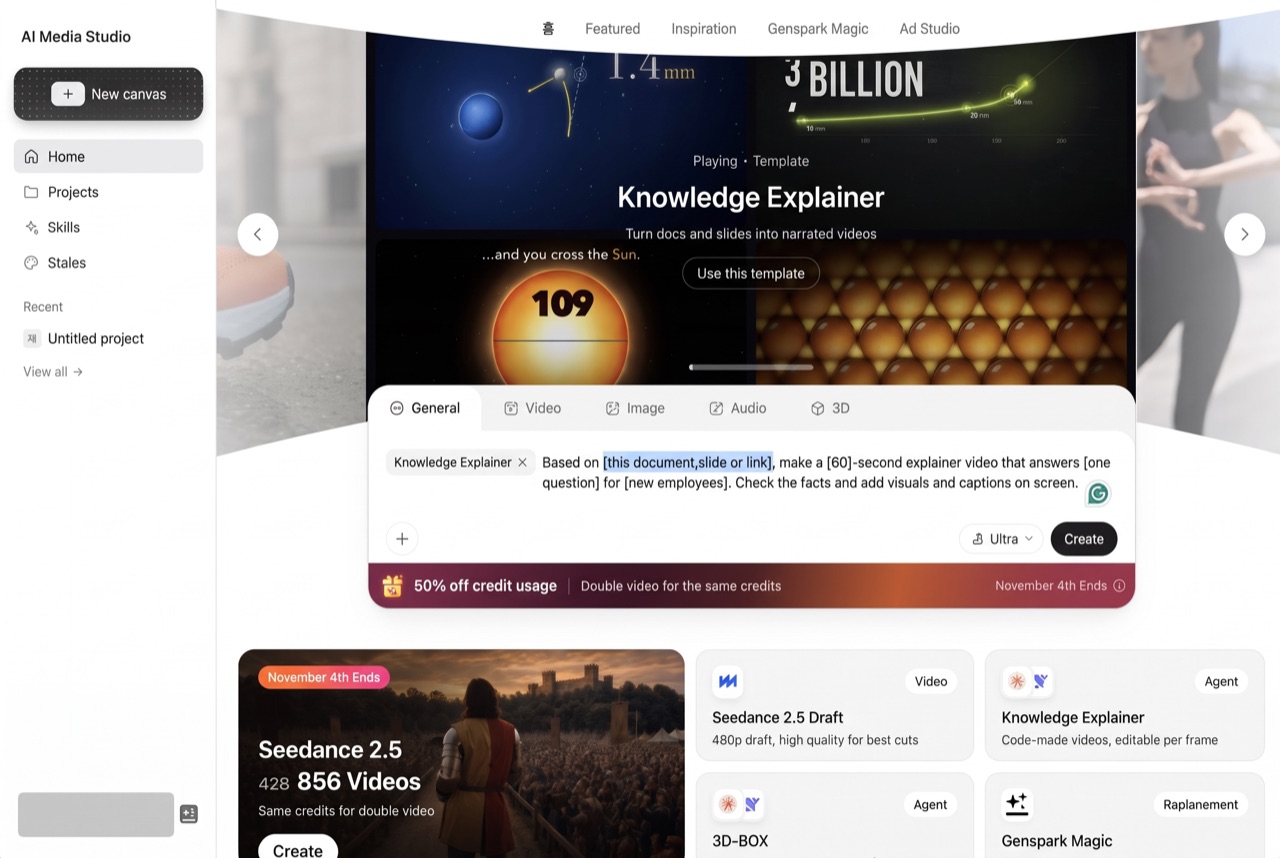
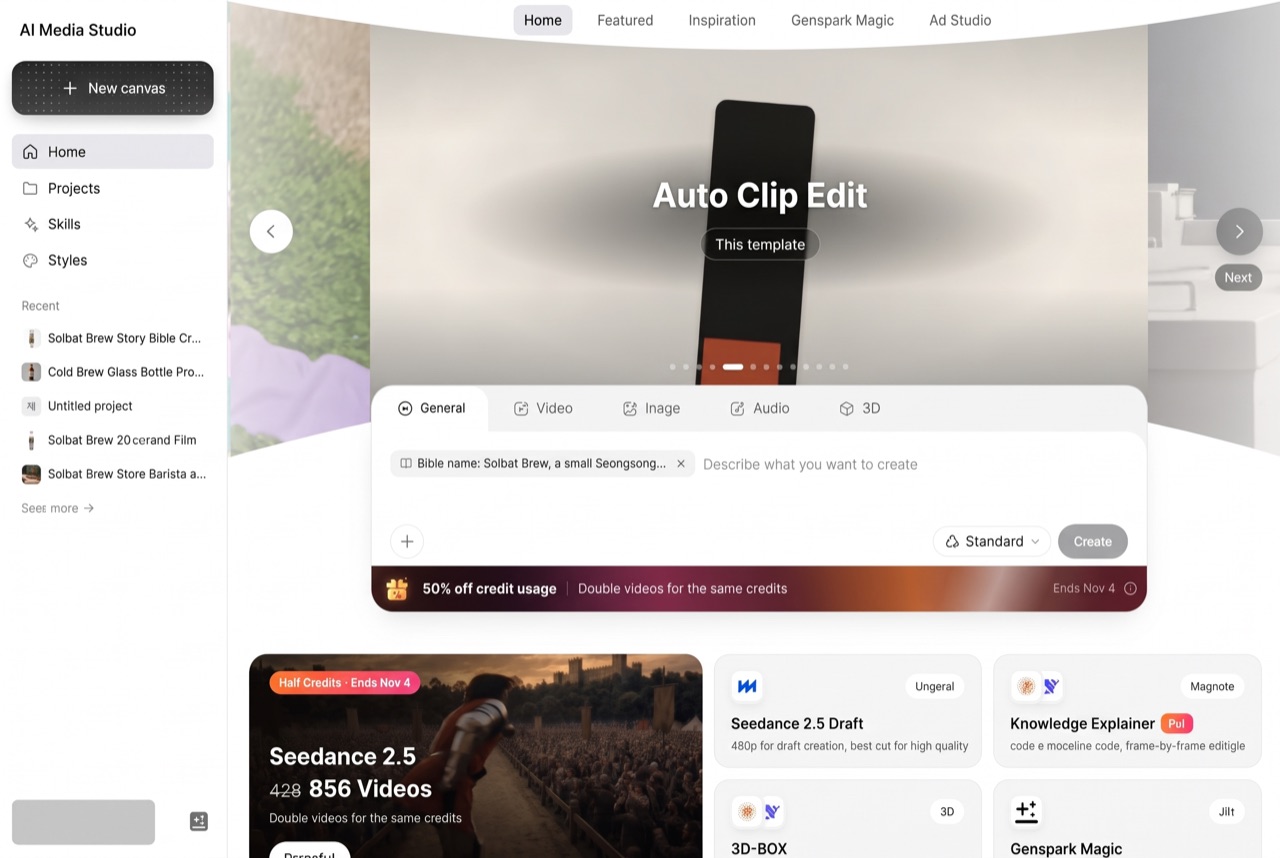
The Genspark AI Media Studio home screen. Browsing the templates makes time disappear 🤣
It’s a new space inside Genspark for making video, images, audio and 3D. You type what you want into the input box, and the agent makes a plan, asks questions when it needs to, creates the result and then checks it on its own.
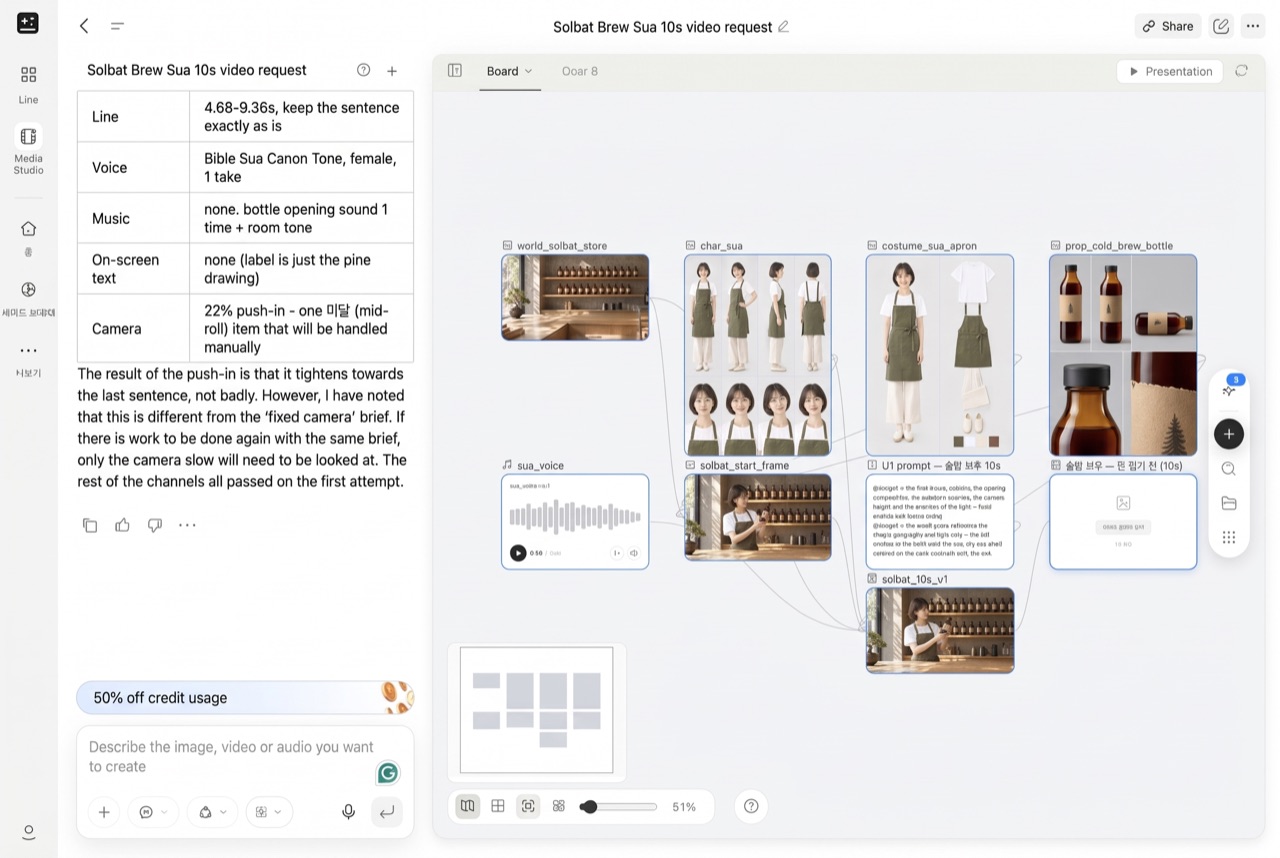
Everything you make piles up as nodes on the ‘Board’ on the right, and lines show which image was used to make which video.
Click ‘AI Media Studio’ under the input box on the Genspark home page, or go to genspark.ai/media-studioAffiliate link: Fieldnotes earns a commission if you purchase through this link..
01 Make AI images with consistent characters on one board
We’ll make 4 images: the product bottle, the barista, the store, and a scene that combines all three.
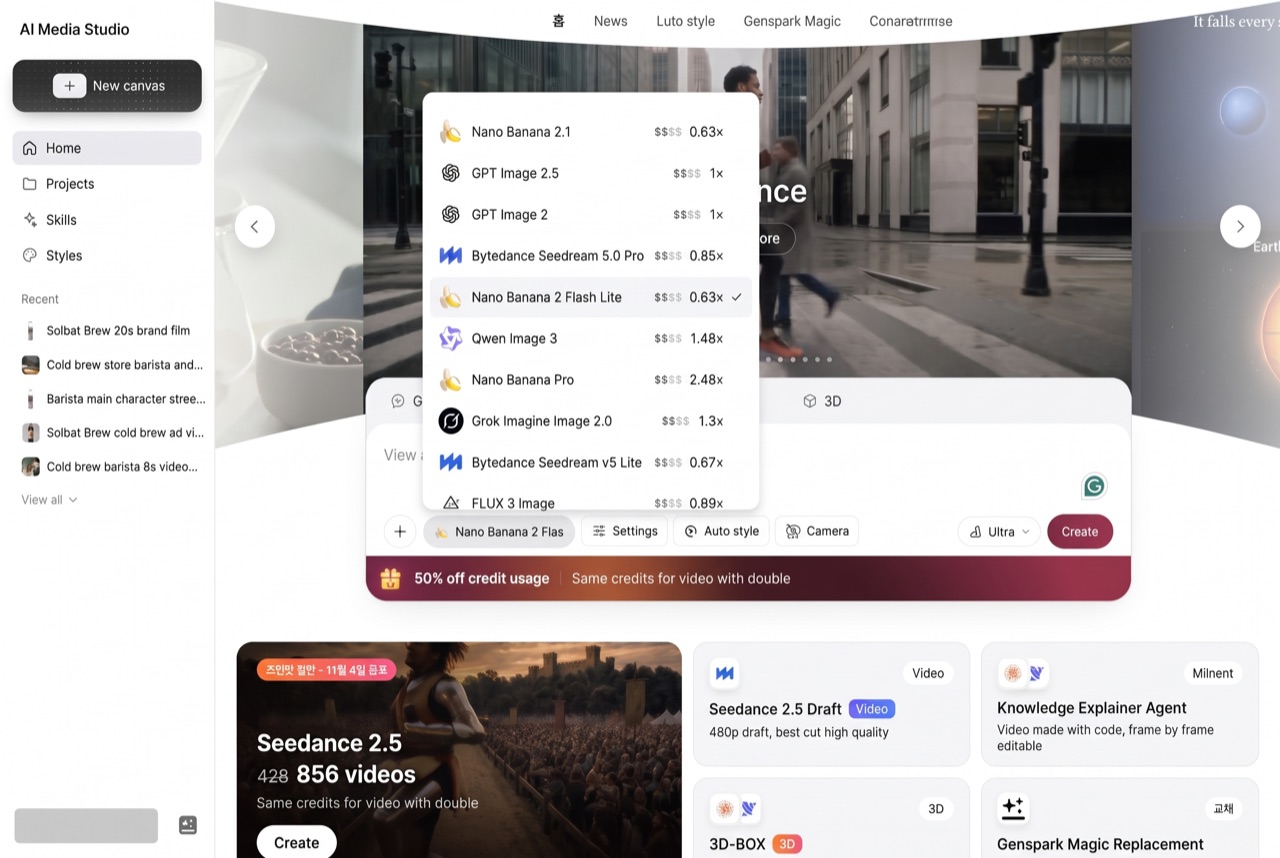
1. Pick a model and mode in the ‘Image’ tab
Click the ‘Image’ tab above the home input box, click the model chip and choose ‘GPT Image 2.5’. In ‘Settings’, set the ratio to 1:1.
The number next to each model name is its credit multiplier.
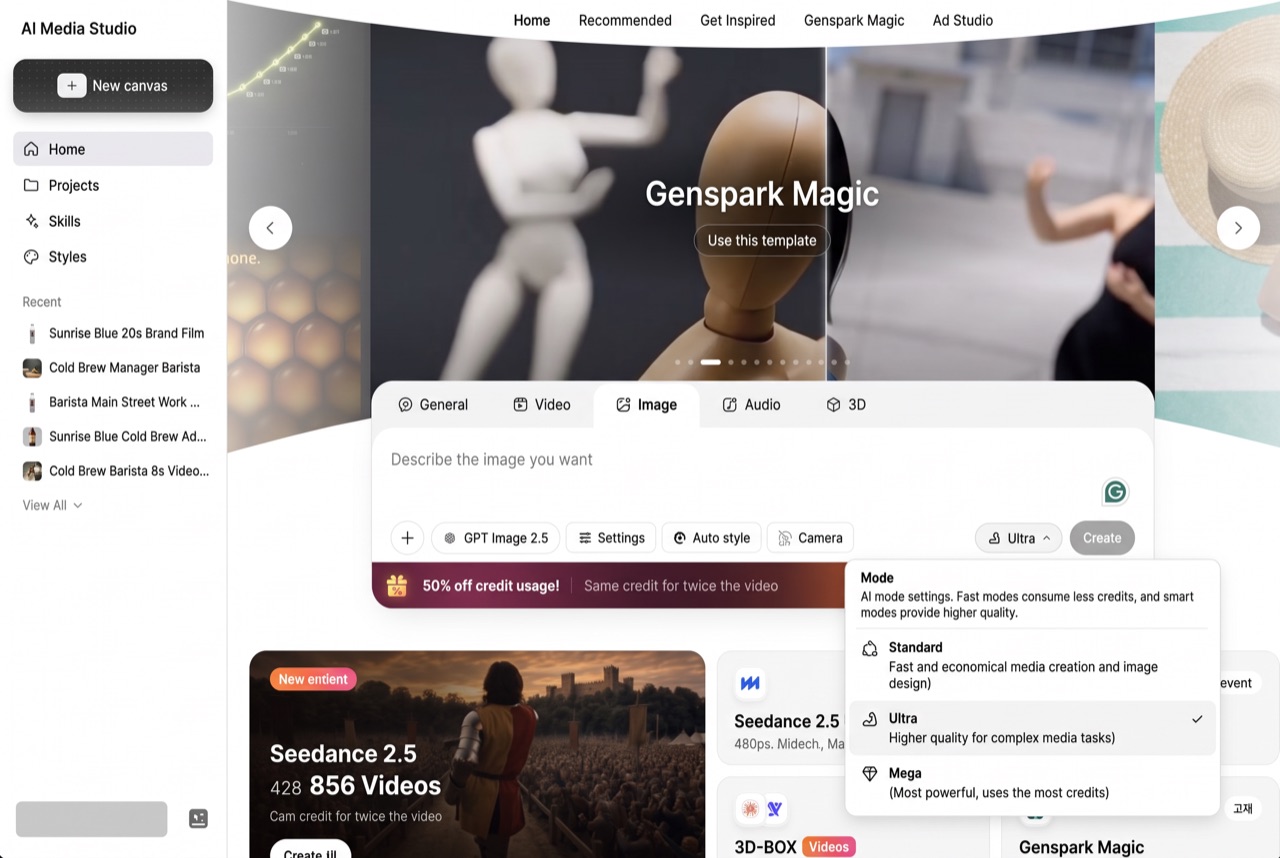
⚠️ Heads up In the mode chip to the left of the ‘Create’ button you can choose Ultra or Standard. Ultra performs better, but it also burns more credits!
Standard - Ultra - Mega, in that order
Paste the product bottle prompt and click ‘Create’.
📋 Prompt
One amber glass bottle filled with cold brew. The kraft paper label has only a small pine tree drawing and no text.
- Style: realistic studio product photo
- Colors: amber, kraft beige, light gray
- Lighting: studio lighting, soft shadows
- Background: plain light gray background, the whole bottle visible from the front
- No text or logos anywhere in the frame
2. Add a node on the same board
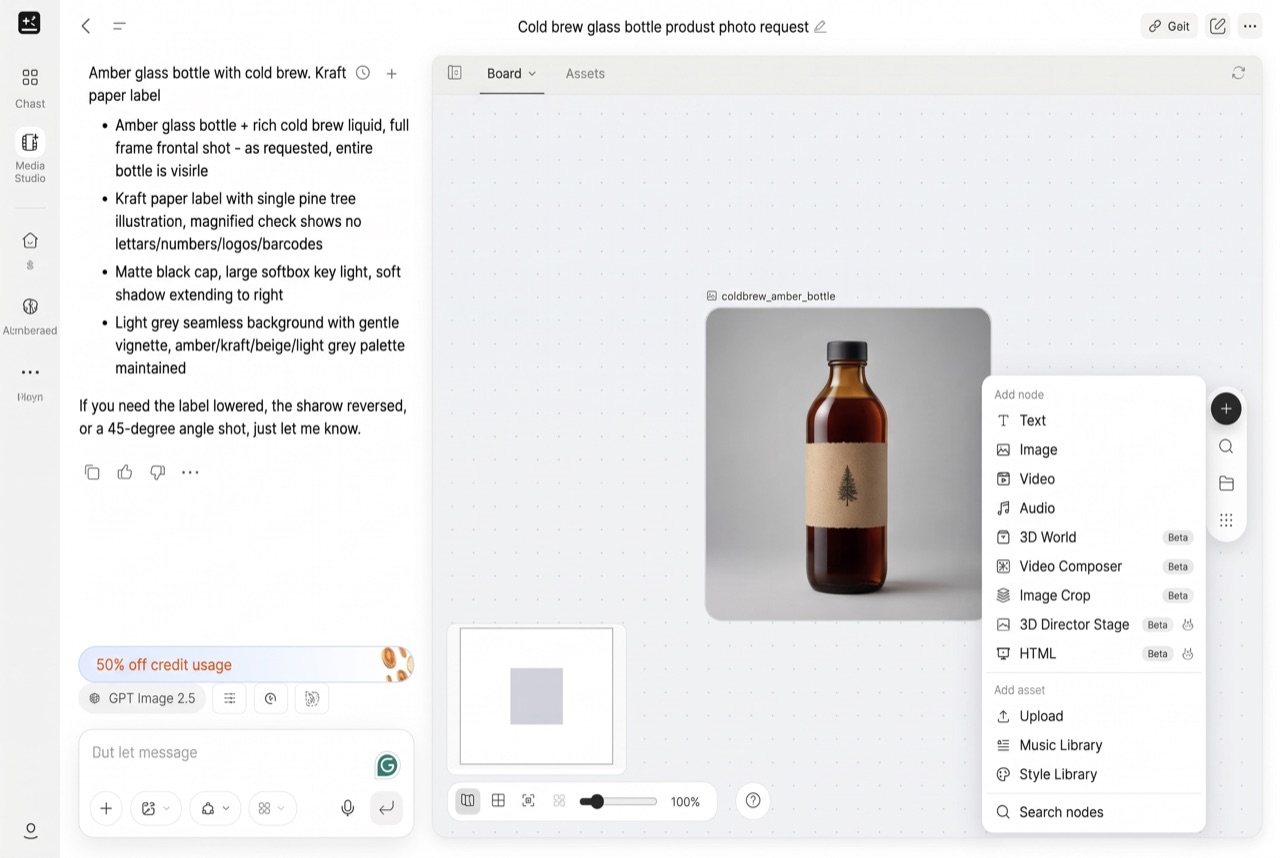
The cold brew bottle is done. From the second image on, click the black ‘+’ on the vertical bar on the right side of the board and choose ‘Image’ to create an empty node. Put the barista prompt in it and press ‘↵’ to make the next image.
One click on ‘+’ inside the board and you’re done.
3. Attach the earlier images with ‘Select references’
Make the bottle, staff and store images one by one like this, then create one more new node.
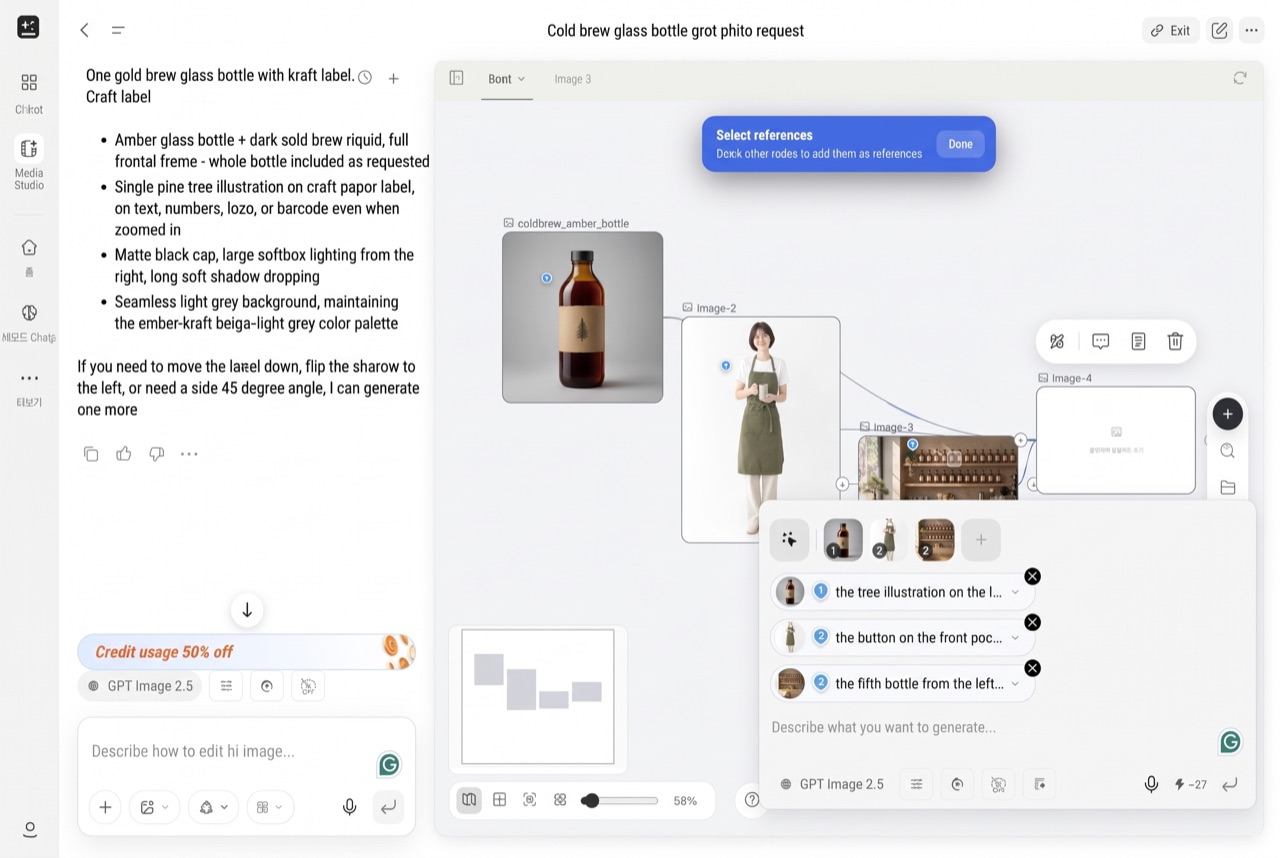
Click the magic wand icon, ‘Select references’, at the top left of the input field, and click the bottle, barista and store images in order.
The three nodes get connected, so the new image can use them as references.
Each click adds a number: 1, 2, 3.
📋 Prompt
The referenced barista stands behind the wooden counter of the referenced store, smiling as she holds the referenced cold brew bottle out toward the customer.
- Keep the person, bottle and store the same as the reference images (face, apron, bottle shape and label, shelves)
- Style: realistic store photo, medium shot from the waist up
- Lighting: morning sunlight coming through the window
- No text or logos in the frame
Lines from the three nodes come together into one combined scene.
🔗 See the result:4 AI images made on one boardAffiliate link: Fieldnotes earns a commission if you purchase through this link.
02 Block the movement on a white stage with 3D-BOX, then make a live-action AI video
Before shooting a film, crews often run through the movement and camera with white mannequins instead of actors. This is called ‘previz’. If you make the previz first, you don’t leave the shot layout and every movement of people and objects up to the AI. You get to adjust and record the details yourself.
3D-BOX is a template where AI does this for you.
It sets the movement on a white stage, then turns it into live action with the exact same timing.
1. Click ‘3D-BOX’ under ‘Featured’
Click ‘Featured’ at the top of the Media Studio home and click the ‘3D-BOX’ card. The input box fills with an example sentence. Change the two brackets (the movement scene and the background location) and it becomes your own prompt.
The 3D-BOX card description: ‘Block the scene in 3D, finish it like live action.’
📋 Prompt
On a white stage, block the movement for [a barista slowly sliding an amber glass bottle across the wooden counter toward a customer, and the customer picking up the bottle], then shoot the final video with [a small cold brew shop in Seongsu-dong with morning sunlight coming in] as the background. 16:9, no text or logos on screen.
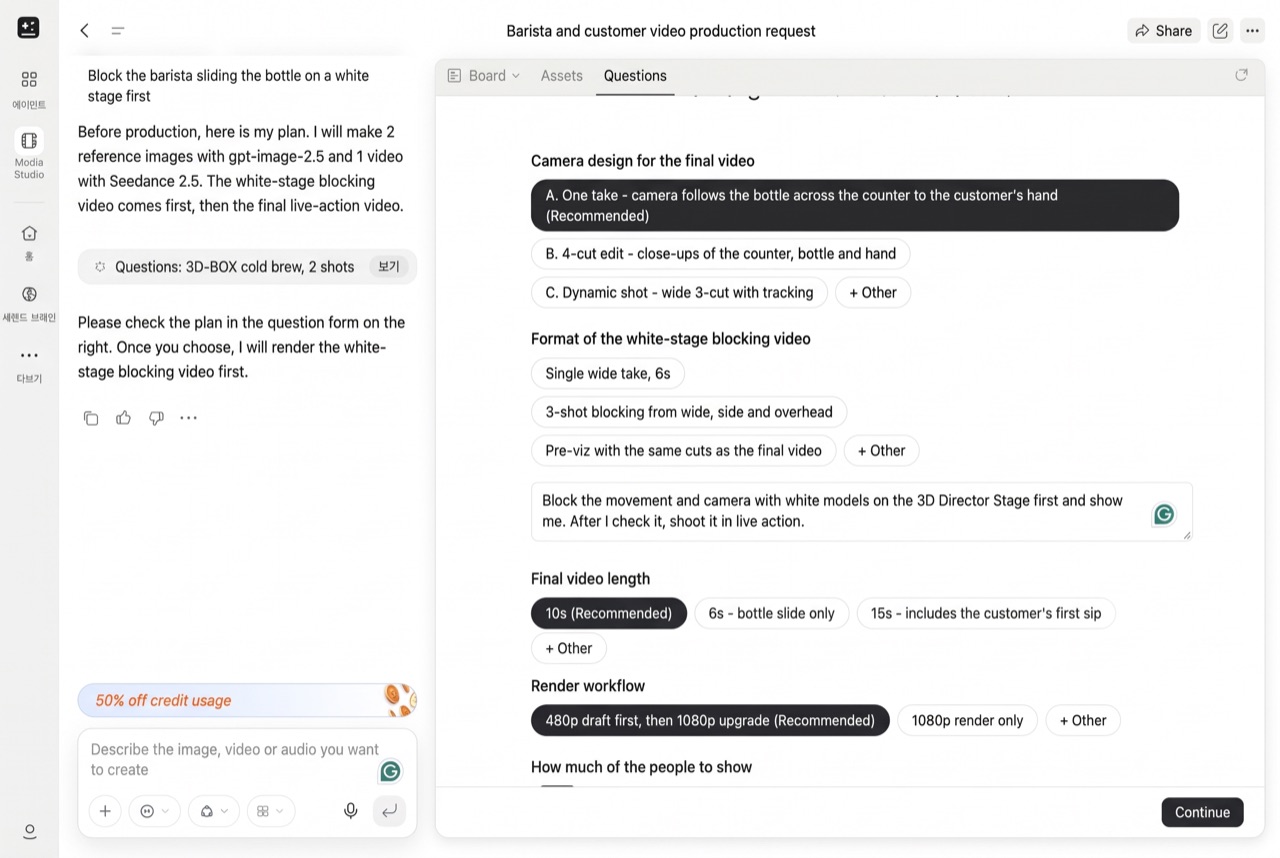
2. Ask for the ‘3D Director Stage’ directly in the question form
📋 What to type in the ‘+ Other’ field
Block the movement and camera with white models on the 3D Director Stage first and show me. After I check it, shoot it in live action.
The prompt you enter under ‘Format of the white-stage blocking video’ is the important part.
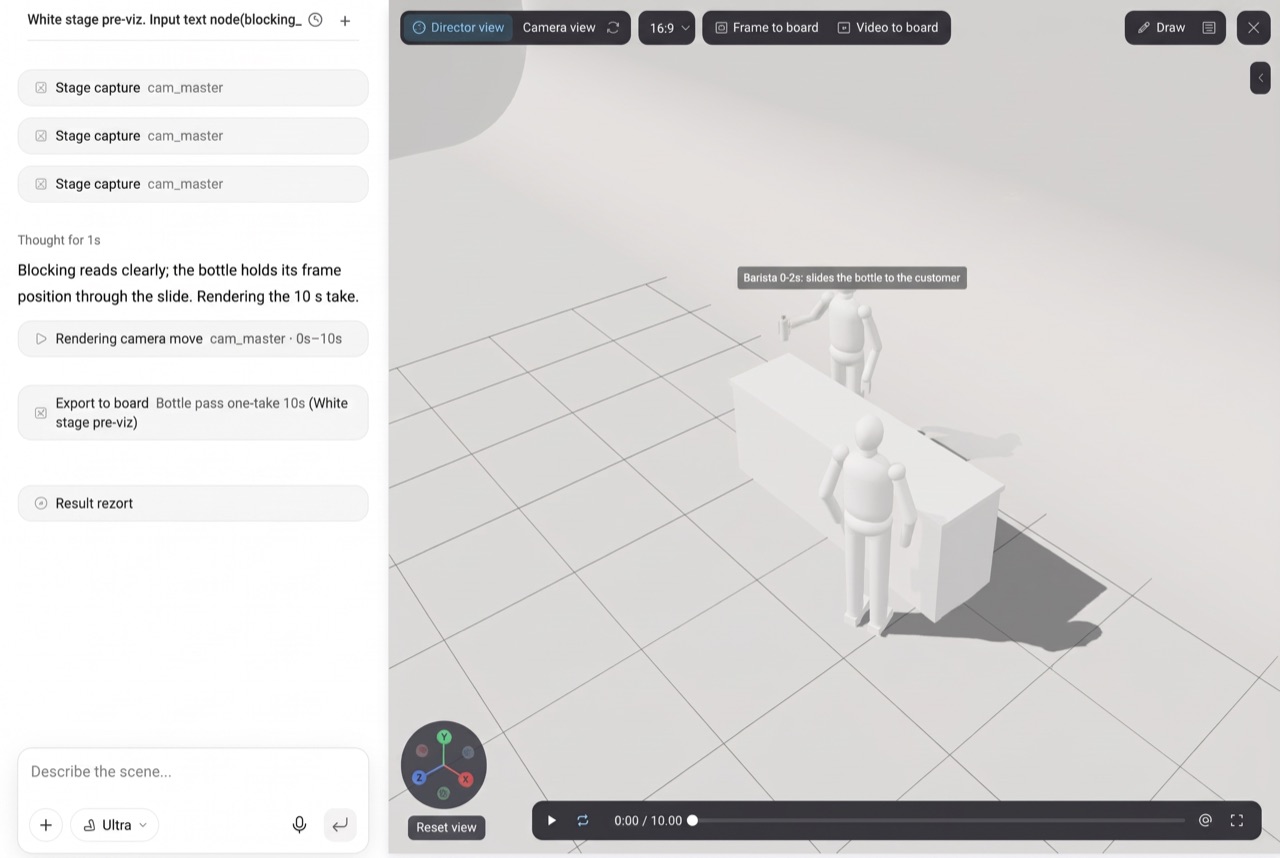
3. Look around the 3D Director Stage
When a node with a ‘3D’ badge appears on the board, click ‘Open stage’. Drag with your mouse to rotate the view, and drag the timeline at the bottom to see the action second by second.
Two white mannequins, one playing the barista and one the customer. You set even the counter position first, like this.
Once the movement is set and the shoot is ready, the agent waits for your approval. Send “Great. Please go ahead as is.” and generation starts, as if you were shooting live action.
4. Check the 3D-BOX live-action video
First, the 10-second movement blocked on the white stage - the mannequin’s hand slides the bottle and the customer’s hand takes it.The 10-second live-action take 3D-BOX shot with the same timing.
🔗 See the result:3D-BOX bottle hand-off sceneAffiliate link: Fieldnotes earns a commission if you purchase through this link.
03 Make a 60-second knowledge explainer video from a PDF guide
This time, let’s turn a new barista guide into a short training video. ‘Knowledge Explainer’ is a template that turns a document into a short narrated video that answers one question.
1. Click ‘Knowledge Explainer’ under ‘Featured’, and leave the mode on Ultra
When you click the ‘Knowledge Explainer’ card under ‘Featured’, the mode switches to ‘Ultra’ automatically. The job goes through several steps (script, narration, graphics), so just leave it on Ultra.
The moment you click the card, the mode quietly switches to Ultra. It costs more credits, so click knowing that.
2. Attach the PDF and change the four brackets
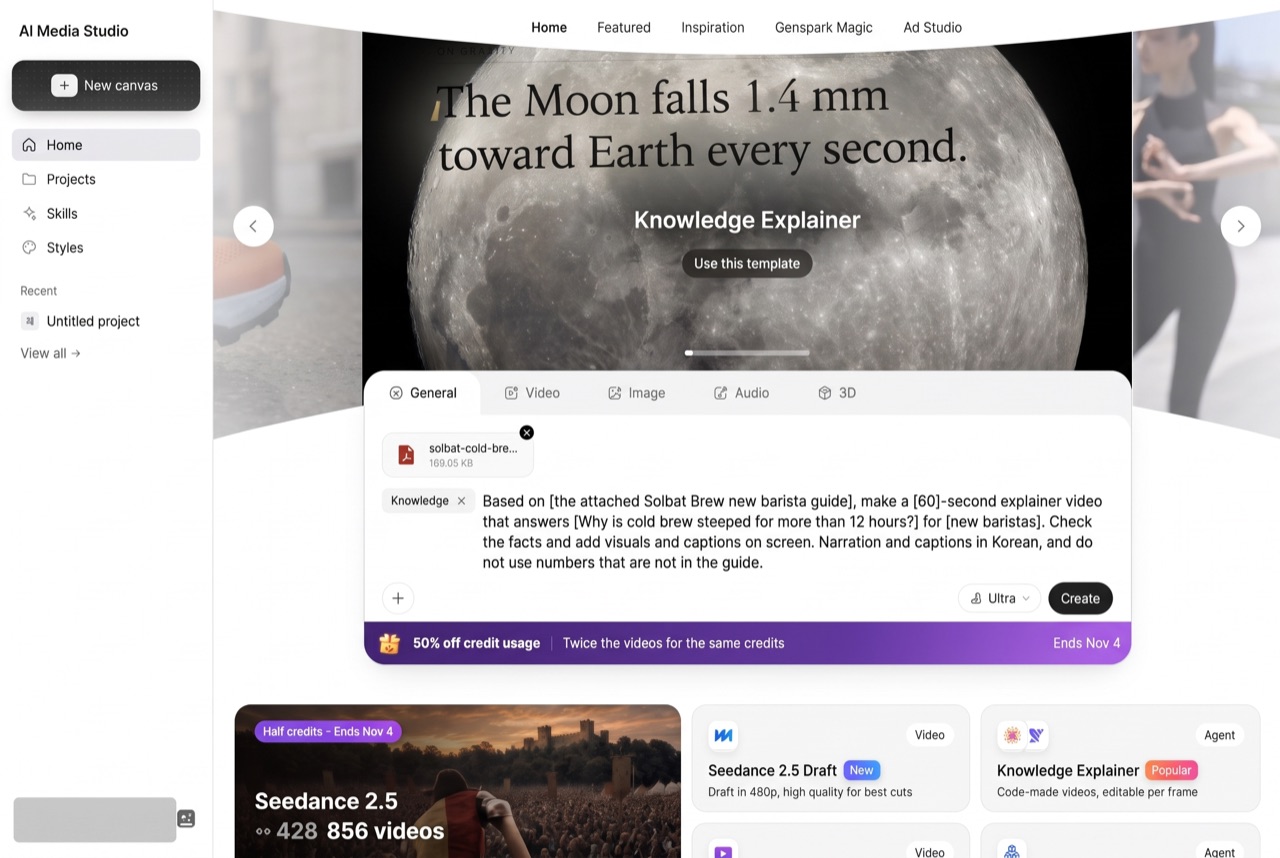
Click ‘+’ at the bottom left of the input box and attach the guide PDF with ‘Browse local files’. Change the four brackets (source material, audience, question, length). At the end, I added a narration language and a ‘no numbers that aren’t in the guide’ rule.
📋 Prompt
Based on [the attached Solbat Brew new barista guide], make a [60]-second explainer video that answers [Why is cold brew steeped for more than 12 hours?] for [new baristas]. Check the facts and add visuals and captions on screen. Write the narration and captions in Korean (swap in your own language), and don't use any numbers that aren't in the guide.
When you see the PDF chip and the prompt together, click ‘Create’.
3. Read the Fact Ledger, then approve
About 75 seconds later, an approval question opens in the ‘Questions’ tab on the right.
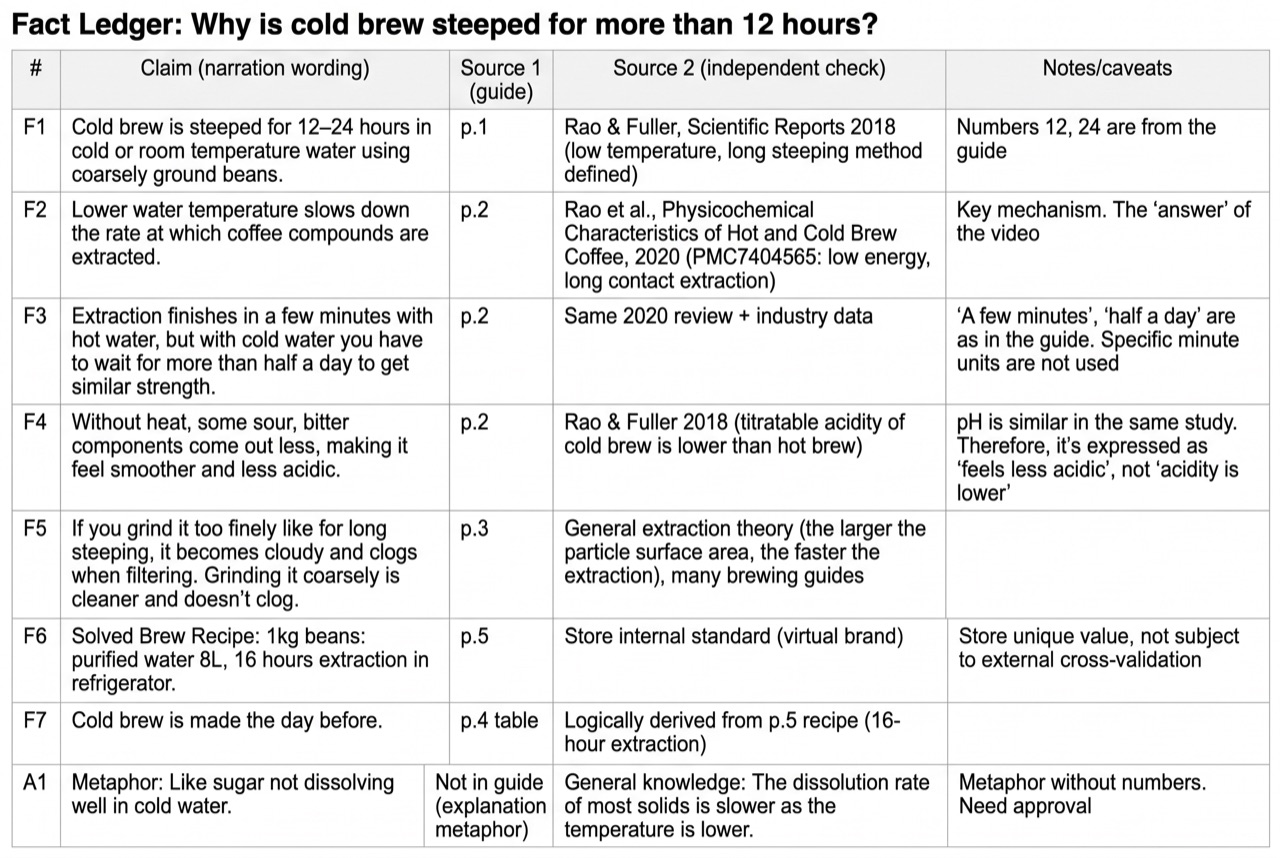
Before you click anything, open the ‘Fact Ledger’ node in the ‘Board’ tab. It’s a table that shows, for each claim, which page of the guide it comes from and what the outside source is, so you can preview the structure of the video in detail.
For the approval question, pick the recommended options, type “Great. Please go ahead as is.” in the field at the bottom and click ‘Continue’.
4. Check the knowledge explainer completion report
It was finished about 28 minutes after I approved it.
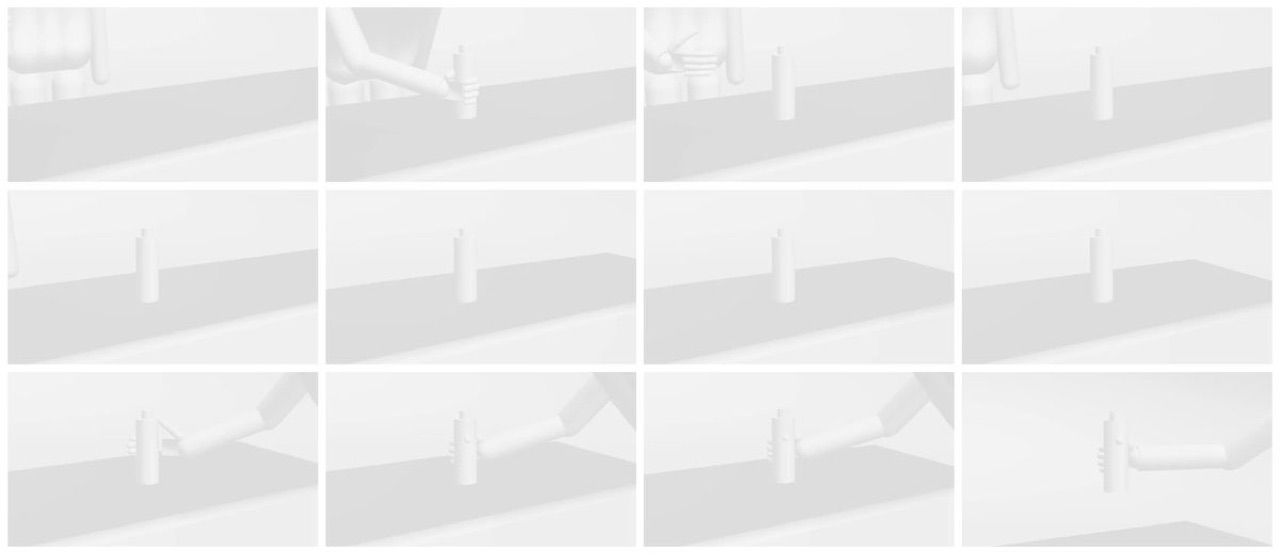
1080×1920 vertical, 62.9 secondsI cut the 60-second vertical video into 12 frames. It opens with ‘A few minutes’ and ends with ‘The long time is the speed of cold water’. It turned out well for onboarding new staff.
04 Make a video with a locked character and voice using a Story Bible
Once you’re making several videos, the most annoying thing is the barista’s face changing from one video to the next. A Story Bible is a feature where you set up the character, outfits, locations, products and voice once, then attach it to new videos so they stay the same.
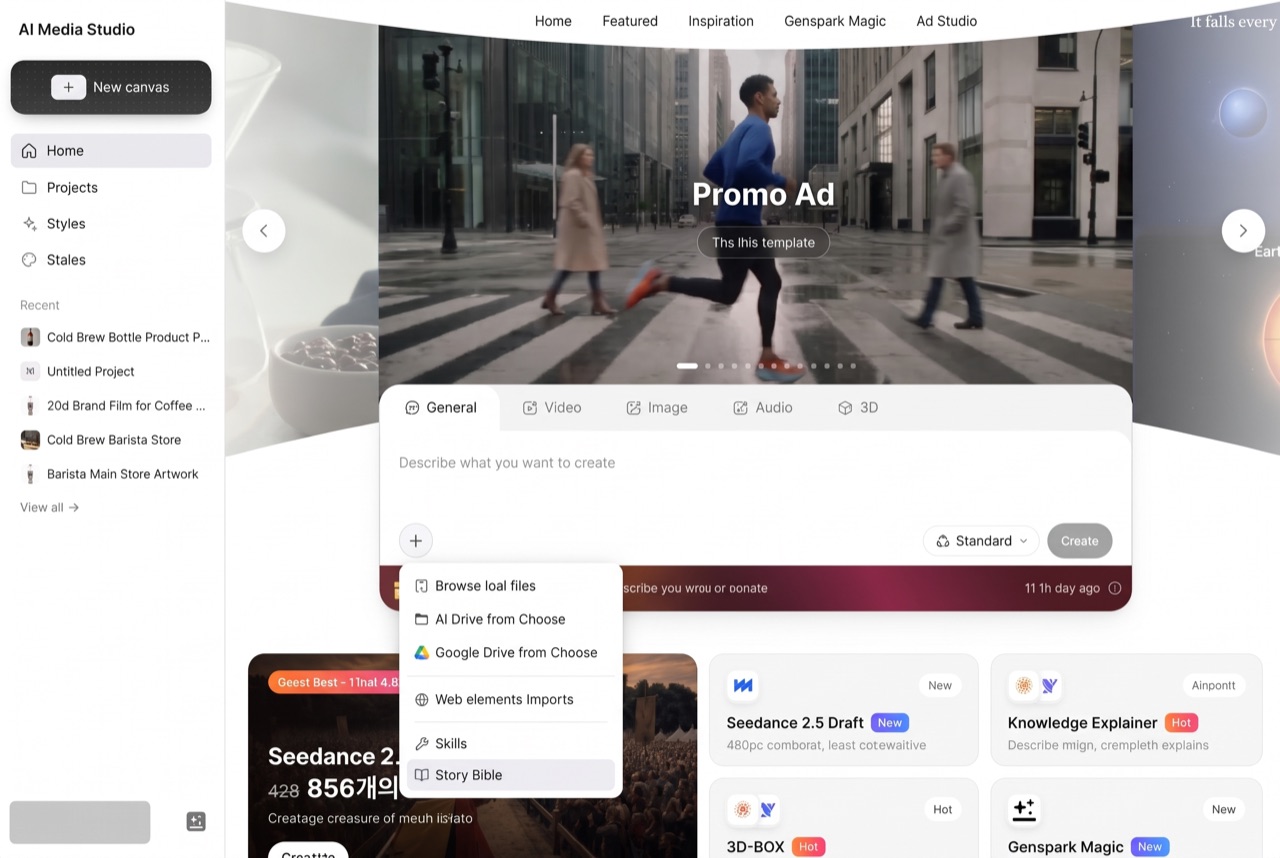
1. Open ‘Create Story Bible’ from the ‘+’ in the input box
It’s not in the left menu. Click ‘+’ at the bottom left of the home input box and it’s at the very bottom of the menu. Click ‘Story Bible’, then click ‘Create Story Bible’ in the middle.
Hidden at the very bottom of the ‘+’ menu. It took me a while to find it at first.
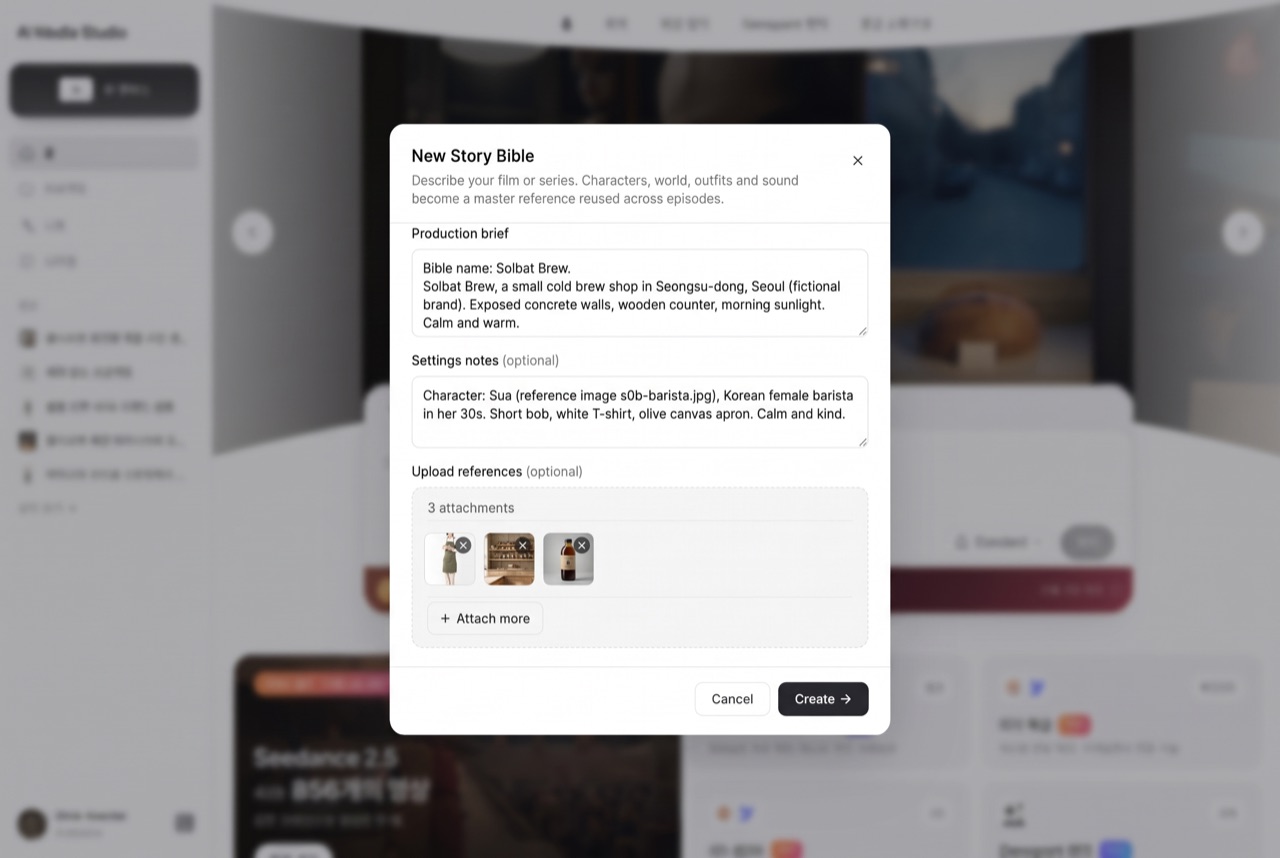
2. Add a brief, settings notes and three photos
There’s no separate field for the bible name, so write the name on the first line of the ‘Production brief’.
📋 Production brief
Bible name: Solbat Brew
'Solbat Brew', a small cold brew shop in Seongsu-dong, Seoul (fictional brand). Exposed concrete walls, a wooden counter, wooden shelves holding amber bottles, morning sunlight. Calm, warm mood.
There are no separate fields for characters or voice either. Just write them one per line in the ‘Settings notes’.
📋 Settings notes
Character: Sua (reference image s0b-barista.jpg), Korean female barista in her 30s. Short bob, white T-shirt, olive canvas apron. Calm and kind way of speaking.
Voice: calm, warm Korean female voice.
Location: Solbat Brew store (reference image s0b-cafe.jpg)
Prop/product: Original cold brew bottle (reference image s0b-product.jpg), amber glass bottle, kraft label with a single pine tree drawing, no text
Under ‘Attach’, use ‘Upload file’ to add the barista, store and product bottle photos you made in ❶, then click ‘Create’.
3. Answer the questions and the bible is done
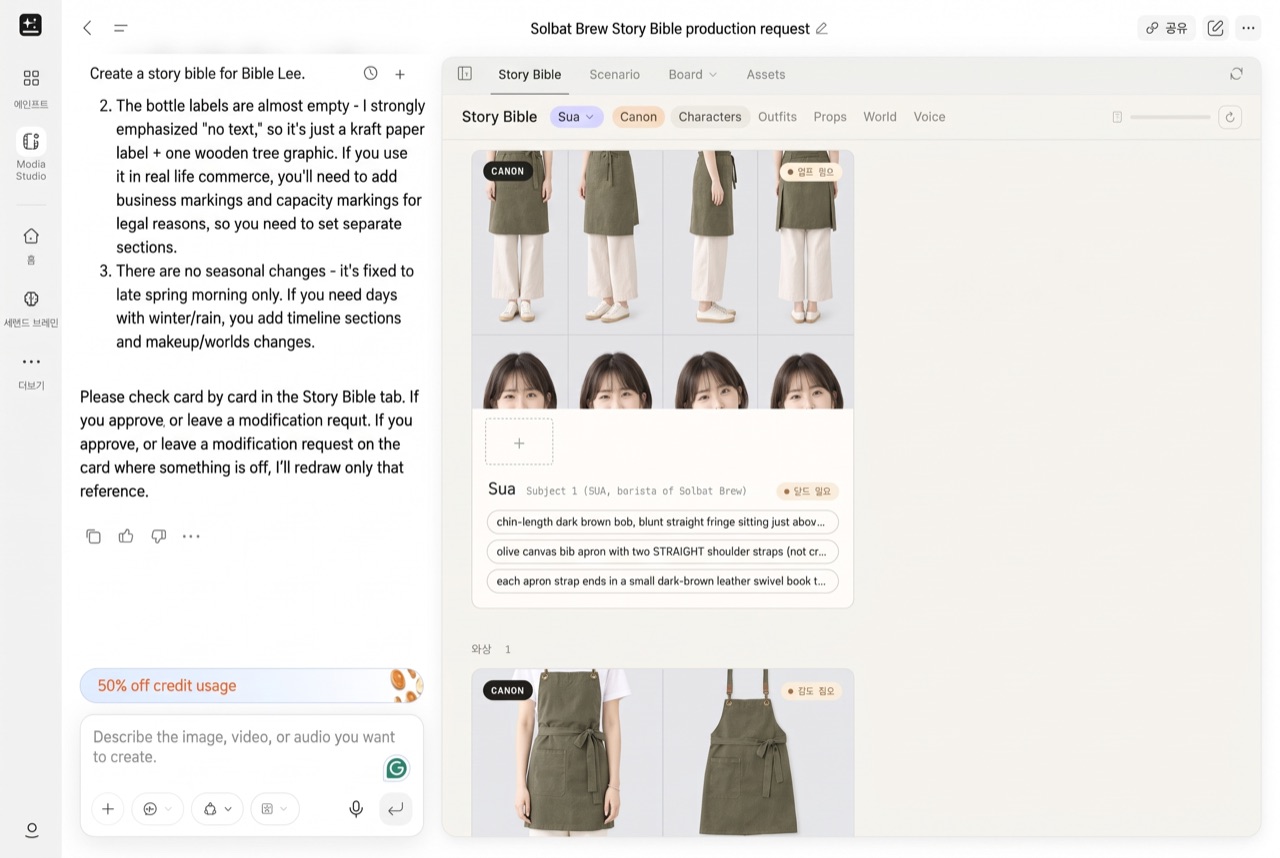
About 3 minutes later, in a new tab, the agent posts a proposed canon (baseline settings) and 6 questions. Pick the first chip for each question and click ‘Continue’.
After about 6 more minutes, the store photo, Sua’s character sheet, the apron and bottle sheets, and even a voice sample are ready.
Character Sua: four full-body angles and four face shots.
4. Attach the bible in the home input box and make a video
Make the video as a new request. Open ‘Story Bible’ again from ‘+’ in the home input box and click the Solbat Brew card. A bible chip appears at the very front of the input box.
When you see the bible chip in front of the input box, it’s connected.
📋 Prompt
Use Sua and the store from the Story Bible 'Solbat Brew' to make a 10-second video.
- Scene: morning. Behind the store's wooden counter, Sua puts an Original cold brew bottle on the shelf, looks at the camera and says one sentence.
- Line (Korean, in Sua's voice, finished within 10 seconds): "Our Original, slowly steeped for 16 hours, is ready for you today."
- Keep Sua's face, hair and apron, the bottle shape and label, and the store the same as in the bible
- Make the video only once, and ask me first before making it again
5. Check the Story Bible video
The bible’s sheets and voice are copied onto the board and lead into the video node. Same face, same apron, and even the spoken line.She puts the bottle on the shelf, turns around and says her line. The character consistency is clear.
🔗 See the result:Sua’s 10-second videoAffiliate link: Fieldnotes earns a commission if you purchase through this link. · Solbat Brew Story BibleAffiliate link: Fieldnotes earns a commission if you purchase through this link.
After trying it, here’s who I’d recommend it to.
I started with a few photos and one PDF guide. Product images, 3D blocking, a training video and a video of the same face speaking a line, all made one after another on one board.
I think it’ll be especially useful for marketers, store owners and training managers who have to handle promo videos and training content themselves, without a film crew or editing tools. If you’ve been putting off making AI videos, start with a single image in Genspark AI Media StudioAffiliate link: Fieldnotes earns a commission if you purchase through this link..
Genspark AI Media Studio features at a glance
There are a lot more features beyond these. Come back to this list whenever you get stuck on how to use Genspark Media Studio. The ones I used today are marked ‘Tried today’.
‘Image’ tab in the input box (Tried today, 01)
What it does: pick a model, ratio and number of generations, and turn a text description straight into an image.
Use it when: you need a mock-up image of a new product bottle before the photo shoot.
Board image nodes and ‘Select references’ (Tried today, 01)
What it does: add image nodes to the same board and attach earlier images as references, so the same bottle and the same person keep appearing.
Use it when: you’re making a set of promo images where the product, model and store can’t change from shot to shot.
‘3D’ tab in the input box (3D World)
What it does: turns a space you describe in text into a 3D space you can walk around in.
Use it when: you need to show your boss how a pop-up store will feel before it opens.
3D-BOX (3D Director Stage) (Tried today, 02)
What it does: blocks the movement with mannequins, props and a camera on a white stage first, then shoots a live-action video with the same timing.
Use it when: you need to preview the in-store movement and camera moves before a product launch.
Knowledge Explainer (Tried today, 03)
What it does: makes a short narrated explainer video that answers one question, based on a document or slides.
Use it when: you need to turn an onboarding guide or manual into a short training video.
Genspark Magic
What it does: keeps the motion and camera movement of a template video and reshoots it with the people and places from your own photos.
Use it when: you want to borrow the direction of a well-made video for a short social video with your own staff and store.
Ads Studio
What it does: keeps the gestures and speaking timing of a UGC ad template and swaps in your product, cast and background from your own photos.
Use it when: you need a review-style social ad for a new product without a film crew.
Projects (node board)
What it does: connects image, music, text and video nodes with lines to make shots that reference a key image, then bundles them into one piece.
Use it when: you’re making a multi-shot brand film and want to check it scene by scene.
Video Composer
What it does: joins the video clips, music and captions on your board in a timeline and exports the final video.
Use it when: you need to merge separately made shots and background music into one video to hand off.
Skill: ‘Infographic & Knowledge Studio’
What it does: turns documents or text into visual explainer images such as infographics, bento grids, technical diagrams and knowledge cards.
Use it when: you need to sum up a procedure from the store manual in one image for social media or a store poster.
Style Library
What it does: pick one of 444 styles and attach its style prompt (color, light, texture, camera) to your request.
Use it when: you need several brand videos and images to share the same tone.
Story Bible (Tried today, 04)
What it does: sets up characters, outfits, props, locations and voices once, then attaches them to new requests so every video stays the same.
Use it when: the same barista has to appear with the same face and voice even as the number of videos grows.
Genspark AI Media Studio vs Magnific vs Higgsfield: what’s the difference?
When people think of AI video tools, many think of Magnific (formerly Freepik) or Higgsfield first. Both also have node boards, agents and 3D, so on feature names alone they look pretty similar.
So I opened the official pages of both, one by one, and put what each does best side by side.
How you work
Genspark AI Media Studio: the agent makes a plan, confirms with questions, then checks its own results. Everything you make stacks up as connected nodes on one board.
Magnific: in the node canvas ‘Spaces’, the agent connects nodes and runs workflows. Teammates can edit together in real time.
Higgsfield: pick the tool that fits the job, such as Cinema Studio, Marketing Studio or Canvas. The agent ‘Supercomputer’ runs a project in a single chat.
Blocking a scene in 3D
Genspark AI Media Studio: ‘3D-BOX’ blocks the movement on a white stage and shoots a live-action video with the same timing. ‘3D World’ builds a space you can walk around in.
Magnific: make a 3D model from 1 to 4 photos, then set the camera in ‘3D Scenes’ and render the scene.
Higgsfield: in ‘3D Jutsu’, block the movement and camera path with gray models, then output a video in the same chat.
Keeping the same character
Genspark AI Media Studio: bundle characters, outfits, props, locations and voices in a ‘Story Bible’ once and attach it to new requests.
Magnific: train a person with ‘AI Character Training’ (1,000 credits per character in High mode, 3,000 in Ultra).
Higgsfield: train ‘Soul ID’ on photos to keep the same face, and reuse characters, locations and props with ‘Elements’.
Using documents
Genspark AI Media Studio: ‘Knowledge Explainer’ makes an explainer video based on a PDF and shows where each claim comes from in a ‘Fact Ledger’ table.
Magnific: upload PDFs and documents to the agent as a ‘Knowledge Base’ and use them as the basis for the work.
Higgsfield: Supercomputer turns social and web research into a PDF or HTML brief.
Beyond video
Genspark AI Media Studio: keep going in the same Genspark workspace with slides, sheets and docs.
Magnific: over 250 million stock photos, videos and vectors, plus Photoshop and Figma plugins.
Higgsfield: connects to more than 30 apps such as Slack, Google Drive and Notion, and can even deploy websites.
For upscaling quality, Magnific is strong (images up to 16x, video at 4K and 60fps). For fine-grained cinematic direction of camera and lighting, Higgsfield is strong.
Genspark AI Media Studio looks like a better fit if you need to make explainer videos from documents and carry on with planning docs and slides in one workspace!
Screens, menus and template names show Genspark AI Media Studio as I used it in the days after its October 27, 2026 launch. Magnific and Higgsfield features were checked on their official pages on November 1, 2026. Features and credit costs may change.
Explore the available options
Confirm the final price, eligibility, and refund terms on the seller page before purchasing.
AI Spreadsheet Generator: 5 Tools Compared by JobAI spreadsheet generator tools compared for research tables, formulas, templates, analysis, and collaborative work. Verify every calculation before use.